How to show leading zeroes in Excel using a custom number formatTo display leading zeroes, apply a custom number format by performing these steps:
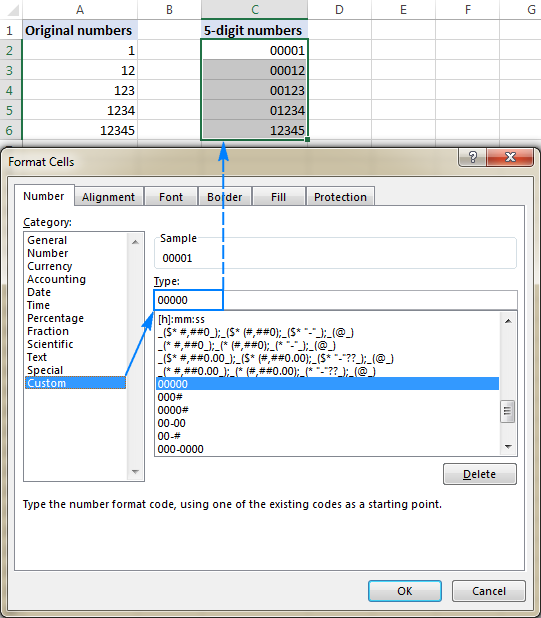
Select a cell(s) where you want to show leading zeros, and press Ctrl+1 to open the Format Cells dialog.
Under Category, select Custom.
Type a format code in the Type box.In most cases, you will need a format code consisting of 0 placeholders, like 00. The number of zeros in the format code corresponds to the total number of digits you want to show
in a cell (you will find a few examples below).
Click OK to save the changes.
For example, to add leading zeros to create a 5-digit number, use the following format code: 00000
試吓:
圓1.) 簡單啲用三個columns做例子
Column A 係Account code
Column B 係particular/ Account name
Column C 係transaction amount / Balance.
圖2.)column A & B , format 係text , column C 係number
圖3.) File ->Save as
File name: b (你自己輸入返自己個檔案名稱
Save as type: 必須揀CSV ( MS DOS)
然後Click “Save” button
圖4.)用notepad 開 b.csv















 發表於
發表於 













 返回列表
返回列表